Paging Library Examples
Introduction to Paging Library in Android.
Paging Library is a support library from Google that helps developers to load and display large data sets in a more efficient and optimized way. It is designed to help developers build smooth, seamless, and fast user experiences when dealing with data sets that are too large to fit in memory. It provides a set of APIs that allow developers to load data in chunks, display it on the UI, and handle scrolling and user interaction.
In this article, we will take a closer look at Paging Library in Android and learn how to use it to load and display large data sets in our apps.
Advantages of Using Paging Library
Paging Library provides several advantages over traditional methods of loading and displaying data. Some of the key advantages are:
- Efficient use of memory: Paging Library loads data in chunks (or pages) which allows it to efficiently manage memory usage by loading only the data that is needed at any given time.
- Smooth scrolling: Paging Library provides built-in support for smooth scrolling and user interaction. It loads data in advance and pre-fetches it so that it is ready to display when the user scrolls.
- Easy to use: Paging Library provides a set of APIs that are easy to use and can be integrated into any existing app without much effort.
Getting Started with Paging Library
To get started with Paging Library, we need to add the following dependencies to our app's build.gradle file:
dependencies {
    def paging_version = "3.0.0"
    implementation "androidx.paging:paging-runtime:$paging_version"
}
Once we have added the dependencies, we can start using Paging Library in our app.
Creating a DataSource
The first step in using Paging Library is to create a DataSource. A DataSource is responsible for loading data from a data source (such as a database or network) and providing it to the Paging Library.
Here is an example of how to create a DataSource that loads data from a Room database:
class MyDataSource(private val dao: MyDao) : PagingSource<Int, MyEntity>() {
    override suspend fun load(params: LoadParams<Int>): LoadResult<Int, MyEntity> {
        val position = params.key ?: 0
        // Load data from the database
        val data = dao.getData(position, params.loadSize)
        return LoadResult.Page(
            data = data,
            prevKey = if (position == 0) null else position - 1,
            nextKey = if (data.isEmpty()) null else position + data.size
        )
    }
}
In this example, we are creating a DataSource that loads data from a Room database using a DAO (Data Access Object). The load method is responsible for loading data from the database and returning it in a LoadResult object.
Creating a PagingData
Once we have created a DataSource, we can use it to create a PagingData object. A PagingData object represents a stream of data that can be loaded and displayed by the Paging Library.
Here is an example of how to create a PagingData object:
val pagingData = Pager(
    config = PagingConfig(pageSize = 20),
    pagingSourceFactory = { MyDataSource(myDao) }
).flow.cachedIn(viewModelScope)
In this example, we are using the Pager class to create a PagingData object. We provide a PagingConfig object that specifies the page size (i.e., the number of items to load at a time) and a pagingSourceFactory that creates a new instance of our MyDataSource class.
Displaying Data
Once we have created a PagingData object, we can use it to display data in our UI. The easiest way to do this is to use the PagingDataAdapter class provided by the Paging Library.
Here is an example of how to use PagingDataAdapter to display data in a RecyclerView:
class MyAdapter : PagingDataAdapter<MyEntity, MyViewHolder>(MyEntityDiffCallback) {
    override fun onBindViewHolder(holder: MyViewHolder, position: Int) {
        getItem(position)?.let { holder.bind(it) }
    }

    override fun onCreateViewHolder(parent: ViewGroup, viewType: Int): MyViewHolder {
        return MyViewHolder.create(parent)
    }
}

class MyViewHolder(itemView: View) : RecyclerView.ViewHolder(itemView) {
    fun bind(entity: MyEntity) {
        // Bind entity to the view
    }

    companion object {
        fun create(parent: ViewGroup): MyViewHolder {
            val view = LayoutInflater.from(parent.context)
                .inflate(R.layout.item_my_entity, parent, false)
            return MyViewHolder(view)
        }
    }
}
In this example, we are creating a PagingDataAdapter that is responsible for binding data to a RecyclerView. The getItem method is used to get the item at a given position from the PagingData object. We then bind the item to the view using the bind method of the MyViewHolder class.
Library architecture
The Paging library integrates directly into the recommended Android app architecture. The library's components operate in three layers of your app:
- The repository layer
- The
ViewModellayer - The UI layer
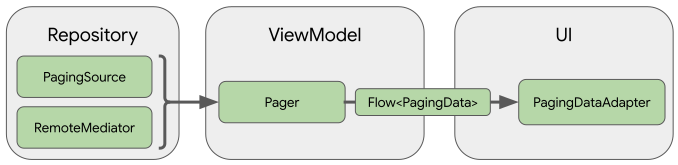
Figure 1. An example of how the Paging library fits into your app architecture.
This section describes the Paging library components that operate at each layer and how they work together to load and display paged data.
Repository layer
The primary Paging library component in the repository layer is PagingSource. Each PagingSource object defines a source of data and how to retrieve data from that source. A PagingSource object can load data from any single source, including network sources and local databases.
Another Paging library component that you might use is RemoteMediator. A RemoteMediator object handles paging from a layered data source, such as a network data source with a local database cache.
ViewModel layer
The Pager component provides a public API for constructing instances of PagingData that are exposed in reactive streams, based on a PagingSource object and a PagingConfig configuration object.
The component that connects the ViewModel layer to the UI is PagingData. A PagingData object is a container for a snapshot of paginated data. It queries a PagingSource object and stores the result.
UI layer
The primary Paging library component in the UI layer is PagingDataAdapter, a RecyclerView adapter that handles paginated data.
Alternatively, you can use the included AsyncPagingDataDiffer component to build your own custom adapter.
Examples
Let us look at some examples.
Example 1: Paging Library Room CRUD
Here is a complete example of how to use Paging Library alongside Room while performing CRUD operations like adding data, updating, reading and deleting
Step 1: Setup Dependencies
Include the following dependencies in your app/build.gradle:
dependencies {
    implementation deps.app_compat
    implementation deps.fragment.runtime_ktx
    implementation deps.recyclerview
    implementation deps.cardview
    implementation deps.lifecycle.runtime
    implementation deps.paging_runtime
    implementation deps.kotlin.stdlib

    kapt deps.room.compiler
    implementation deps.room.runtime
    implementation deps.room.paging
    //...
Furthermore enable Java8 as well as View Binding:
    buildFeatures {
        viewBinding = true
    }

    compileOptions {
        sourceCompatibility JavaVersion.VERSION_1_8
        targetCompatibility JavaVersion.VERSION_1_8
    }

    kotlinOptions {
        jvmTarget = "1.8"
        freeCompilerArgs += ["-Xopt-in=kotlin.RequiresOptIn"]
    }
Step 2: Design Layouts
We will need only two layouts:
(a). cheese_item.xml
Add a CardView with a textview:
<androidx.cardview.widget.CardView xmlns:android="http://schemas.android.com/apk/res/android"
                                    xmlns:app="http://schemas.android.com/apk/res-auto"
                                    android:layout_width="match_parent"
                                    android:layout_height="wrap_content"
                                    android:orientation="vertical"
                                    app:cardUseCompatPadding="true">
    <TextView android:id="@+id/name" style="@style/TextAppearance.AppCompat.Medium"
              android:layout_width="match_parent" android:layout_height="wrap_content"
              android:layout_marginBottom="@dimen/card_vertical_margin"
              android:layout_marginTop="@dimen/card_vertical_margin"/>
</androidx.cardview.widget.CardView>
(b). activity_main.xml
Add a Button, an EditText and a RecyclerView:
<LinearLayout
    xmlns:android="http://schemas.android.com/apk/res/android"
    xmlns:app="http://schemas.android.com/apk/res-auto"
    xmlns:tools="http://schemas.android.com/tools"
    android:layout_width="match_parent" android:layout_height="match_parent"
    android:orientation="vertical"
    tools:context="paging.android.example.com.pagingsample.MainActivity">
    <LinearLayout
        android:layout_width="match_parent"
        android:layout_height="wrap_content"
        android:orientation="horizontal">
        <EditText
            android:id="@+id/inputText"
            android:layout_width="wrap_content"
            android:layout_height="wrap_content"
            android:layout_weight="1"
            android:hint="@string/add_cheese"
            android:imeOptions="actionDone"
            android:inputType="text"
            android:maxLines="1"/>
        <Button
            android:id="@+id/addButton"
            android:layout_width="wrap_content"
            android:layout_height="wrap_content"
            android:layout_weight="0"
            android:text="@string/add"/>
    </LinearLayout>
    <androidx.recyclerview.widget.RecyclerView
        android:id="@+id/cheeseList"
        android:layout_width="match_parent"
        android:layout_height="match_parent"
        android:scrollbars="vertical"
        app:layoutManager="LinearLayoutManager"/>
</LinearLayout>
Step 3: Create Model class
Create a data object class to represent our Cheese:
(a). Cheese.kt
Data class that represents our items.
package paging.android.example.com.pagingsample

import androidx.room.Entity
import androidx.room.PrimaryKey

@Entity
data class Cheese(@PrimaryKey(autoGenerate = true) val id: Int, val name: String)
(b). CheeseListItem.kt
Common UI model between the Cheese data class and separators.
package paging.android.example.com.pagingsample

sealed class CheeseListItem(val name: String) {
    data class Item(val cheese: Cheese) : CheeseListItem(cheese.name)
    data class Separator(private val letter: Char) : CheeseListItem(letter.toUpperCase().toString())
}
Step 4: Create a Room DAO class
(a). CheeseDao.kt
Database Access Object for the Cheese database.
package paging.android.example.com.pagingsample

import androidx.paging.PagingSource
import androidx.room.Dao
import androidx.room.Delete
import androidx.room.Insert
import androidx.room.Query

@Dao
interface CheeseDao {
    /**
     * Room knows how to return a LivePagedListProvider, from which we can get a LiveData and serve
     * it back to UI via ViewModel.
     */
    @Query("SELECT * FROM Cheese ORDER BY name COLLATE NOCASE ASC")
    fun allCheesesByName(): PagingSource<Int, Cheese>

    @Insert
    fun insert(cheeses: List<Cheese>)

    @Insert
    fun insert(cheese: Cheese)

    @Delete
    fun delete(cheese: Cheese)
}
Step 5: Create a Room Database class
(a). CheeseDb.kt
Singleton database object. Note that for a real app, you should probably use a Dependency Injection framework or Service Locator to create the singleton database.
package paging.android.example.com.pagingsample

import androidx.sqlite.db.SupportSQLiteDatabase
import androidx.room.*
import android.content.Context

@Database(entities = [Cheese::class], version = 1)
abstract class CheeseDb : RoomDatabase() {
    abstract fun cheeseDao(): CheeseDao

    companion object {
        private var instance: CheeseDb? = null
        @Synchronized
        fun get(context: Context): CheeseDb {
            if (instance == null) {
                instance = Room.databaseBuilder(context.applicationContext,
                        CheeseDb::class.java, "CheeseDatabase")
                        .addCallback(object : RoomDatabase.Callback() {
                            override fun onCreate(db: SupportSQLiteDatabase) {
                                fillInDb(context.applicationContext)
                            }
                        }).build()
            }
            return instance!!
        }

        /**
         * fill database with list of cheeses
         */
        private fun fillInDb(context: Context) {
            // inserts in Room are executed on the current thread, so we insert in the background
            ioThread {
                get(context).cheeseDao().insert(
                        CHEESE_DATA.map { Cheese(id = 0, name = it) })
            }
        }
    }
}

private val CHEESE_DATA = arrayListOf(
        "Abbaye de Belloc", "Abbaye du Mont des Cats", "Abertam", "Abondance", "Ackawi",
        "Acorn", "Adelost", ....)
Step 6: Create PagingDataAdapter
(a). CheeseViewHolder.kt
A simple ViewHolder that can bind a Cheese or Separator item. It also accepts null items since the data may not have been fetched before it is bound.
package paging.android.example.com.pagingsample

import android.graphics.Typeface
import android.view.LayoutInflater
import android.view.ViewGroup
import android.widget.TextView
import androidx.recyclerview.widget.RecyclerView

class CheeseViewHolder(parent: ViewGroup) : RecyclerView.ViewHolder(
    LayoutInflater.from(parent.context).inflate(R.layout.cheese_item, parent, false)
) {
    var cheese: Cheese? = null
        private set
    private val nameView = itemView.findViewById<TextView>(R.id.name)

    /**
     * Items might be null if they are not paged in yet. PagedListAdapter will re-bind the
     * ViewHolder when Item is loaded.
     */
    fun bindTo(item: CheeseListItem?) {
        if (item is CheeseListItem.Separator) {
            nameView.text = "${item.name} Cheeses"
            nameView.setTypeface(null, Typeface.BOLD)
        } else {
            nameView.text = item?.name
            nameView.setTypeface(null, Typeface.NORMAL)
        }
        cheese = (item as? CheeseListItem.Item)?.cheese
        nameView.text = item?.name
    }
}
(b). CheeseAdapter.kt
A simple PagedListAdapter that binds Cheese items into CardViews.
PagedListAdapter is a RecyclerView.Adapter base class which can present the content of PagedLists in a RecyclerView. It requests new pages as the user scrolls, and handles new PagedLists by computing list differences on a background thread, and dispatching minimal, efficient updates to the RecyclerView to ensure minimal UI thread work.
If you want to use your own Adapter base class, try using a PagedListAdapterHelper inside your adapter instead.
package paging.android.example.com.pagingsample

import android.view.ViewGroup
import androidx.paging.PagingDataAdapter
import androidx.recyclerview.widget.DiffUtil

class CheeseAdapter : PagingDataAdapter<CheeseListItem, CheeseViewHolder>(diffCallback) {
    override fun onBindViewHolder(holder: CheeseViewHolder, position: Int) {
        holder.bindTo(getItem(position))
    }

    override fun onCreateViewHolder(parent: ViewGroup, viewType: Int): CheeseViewHolder {
        return CheeseViewHolder(parent)
    }

    companion object {
        /**
         * This diff callback informs the PagedListAdapter how to compute list differences when new
         * PagedLists arrive.
         *
         * When you add a Cheese with the 'Add' button, the PagedListAdapter uses diffCallback to
         * detect there's only a single item difference from before, so it only needs to animate and
         * rebind a single view.
         *
         * @see DiffUtil
         */
        val diffCallback = object : DiffUtil.ItemCallback<CheeseListItem>() {
            override fun areItemsTheSame(oldItem: CheeseListItem, newItem: CheeseListItem): Boolean {
                return if (oldItem is CheeseListItem.Item && newItem is CheeseListItem.Item) {
                    oldItem.cheese.id == newItem.cheese.id
                } else if (oldItem is CheeseListItem.Separator && newItem is CheeseListItem.Separator) {
                    oldItem.name == newItem.name
                } else {
                    oldItem == newItem
                }
            }


           // Note that in kotlin, == checking on data classes compares all contents, but in Java, typically you'll implement Object#equals, and use it to compare object contents.


            override fun areContentsTheSame(oldItem: CheeseListItem, newItem: CheeseListItem): Boolean {
                return oldItem == newItem
            }
        }
    }
}
Step 7: Create ViewModel
(a). CheeseViewModel.kt
A simple AndroidViewModel that provides a Flow<PagingData> of delicious cheeses.
package paging.android.example.com.pagingsample

import androidx.lifecycle.AndroidViewModel
import androidx.lifecycle.ViewModel
import androidx.lifecycle.viewModelScope
import androidx.paging.*
import kotlinx.coroutines.flow.Flow
import kotlinx.coroutines.flow.map

class CheeseViewModel(private val dao: CheeseDao) : ViewModel() {
    /**
     * We use the Kotlin [Flow] property available on [Pager]. Java developers should use the
     * RxJava or LiveData extension properties available in `PagingRx` and `PagingLiveData`.
     */
    val allCheeses: Flow<PagingData<CheeseListItem>> = Pager(
        config = PagingConfig(
            /**
             * A good page size is a value that fills at least a few screens worth of content on a
             * large device so the User is unlikely to see a null item.
             * You can play with this constant to observe the paging behavior.
             *
             * It's possible to vary this with list device size, but often unnecessary, unless a
             * user scrolling on a large device is expected to scroll through items more quickly
             * than a small device, such as when the large device uses a grid layout of items.
             */
            pageSize = 60,

            /**
             * If placeholders are enabled, PagedList will report the full size but some items might
             * be null in onBind method (PagedListAdapter triggers a rebind when data is loaded).
             *
             * If placeholders are disabled, onBind will never receive null but as more pages are
             * loaded, the scrollbars will jitter as new pages are loaded. You should probably
             * disable scrollbars if you disable placeholders.
             */
            enablePlaceholders = true,

            /**
             * Maximum number of items a PagedList should hold in memory at once.
             *
             * This number triggers the PagedList to start dropping distant pages as more are loaded.
             */
            maxSize = 200
        )
    ) {
        dao.allCheesesByName()
    }.flow
        .map { pagingData ->
            pagingData
                // Map cheeses to common UI model.
                .map { cheese -> CheeseListItem.Item(cheese) }
                .insertSeparators { before: CheeseListItem?, after: CheeseListItem? ->
                    if (before == null && after == null) {
                        // List is empty after fully loaded; return null to skip adding separator.
                        null
                    } else if (after == null) {
                        // Footer; return null here to skip adding a footer.
                        null
                    } else if (before == null) {
                        // Header
                        CheeseListItem.Separator(after.name.first())
                    } else if (!before.name.first().equals(after.name.first(), ignoreCase = true)){
                        // Between two items that start with different letters.
                        CheeseListItem.Separator(after.name.first())
                    } else {
                        // Between two items that start with the same letter.
                        null
                    }
                }
        }
        .cachedIn(viewModelScope)

    fun insert(text: CharSequence) = ioThread {
        dao.insert(Cheese(id = 0, name = text.toString()))
    }

    fun remove(cheese: Cheese) = ioThread {
        dao.delete(cheese)
    }
}
(b). CheeseViewModelFactory.kt
A ViewModelProvider.Factory that provides dependencies to CheeseViewModel, allowing tests to switch out CheeseDao implementation via constructor injection.
package paging.android.example.com.pagingsample

import android.app.Application
import androidx.lifecycle.ViewModel
import androidx.lifecycle.ViewModelProvider

class CheeseViewModelFactory(
    private val app: Application
) : ViewModelProvider.Factory {
    override fun <T : ViewModel?> create(modelClass: Class<T>): T {
        if (modelClass.isAssignableFrom(CheeseViewModel::class.java)) {
            val cheeseDao = CheeseDb.get(app).cheeseDao()
            @Suppress("UNCHECKED_CAST") // Guaranteed to succeed at this point.
            return CheeseViewModel(cheeseDao) as T
        }

        throw IllegalArgumentException("Unknown ViewModel class")
    }
}
Step 8: Create Executors
(a). Executors.kt
package paging.android.example.com.pagingsample

import java.util.concurrent.Executors

private val IO_EXECUTOR = Executors.newSingleThreadExecutor()

/**
 * Utility method to run blocks on a dedicated background thread, used for io/database work.
 */
fun ioThread(f : () -> Unit) {
    IO_EXECUTOR.execute(f)
}
Step 9: Create MainActivity
(a). MainActivity.kt
Shows a list of Cheeses, with swipe-to-delete, and an input field at the top to add. Cheeses are stored in a database, so swipes and additions edit the database directly, and the UI is updated automatically using paging components.
package paging.android.example.com.pagingsample

import android.os.Bundle
import android.view.KeyEvent
import android.view.inputmethod.EditorInfo
import androidx.activity.viewModels
import androidx.appcompat.app.AppCompatActivity
import androidx.lifecycle.lifecycleScope
import androidx.recyclerview.widget.ItemTouchHelper
import androidx.recyclerview.widget.RecyclerView
import kotlinx.coroutines.flow.collectLatest
import kotlinx.coroutines.launch
import paging.android.example.com.pagingsample.databinding.ActivityMainBinding

class MainActivity : AppCompatActivity() {
    lateinit var binding: ActivityMainBinding
        private set
    private val viewModel by viewModels<CheeseViewModel> { CheeseViewModelFactory(application) }

    override fun onCreate(savedInstanceState: Bundle?) {
        super.onCreate(savedInstanceState)
        binding = ActivityMainBinding.inflate(layoutInflater)
        setContentView(binding.root)

        // Create adapter for the RecyclerView
        val adapter = CheeseAdapter()
        binding.cheeseList.adapter = adapter

        // Subscribe the adapter to the ViewModel, so the items in the adapter are refreshed
        // when the list changes
        lifecycleScope.launch {
            viewModel.allCheeses.collectLatest { adapter.submitData(it) }
        }

        initAddButtonListener()
        initSwipeToDelete()
    }

    private fun initSwipeToDelete() {
        ItemTouchHelper(object : ItemTouchHelper.Callback() {
            // enable the items to swipe to the left or right
            override fun getMovementFlags(
                recyclerView: RecyclerView,
                viewHolder: RecyclerView.ViewHolder
            ): Int {
                val cheeseViewHolder = viewHolder as CheeseViewHolder
                return if (cheeseViewHolder.cheese != null) {
                    makeMovementFlags(0, ItemTouchHelper.LEFT or ItemTouchHelper.RIGHT)
                } else {
                    makeMovementFlags(0, 0)
                }
            }

            override fun onMove(recyclerView: RecyclerView, viewHolder: RecyclerView.ViewHolder,
                                target: RecyclerView.ViewHolder): Boolean = false

            // When an item is swiped, remove the item via the view model. The list item will be
            // automatically removed in response, because the adapter is observing the live list.
            override fun onSwiped(viewHolder: RecyclerView.ViewHolder, direction: Int) {
                (viewHolder as CheeseViewHolder).cheese?.let {
                    viewModel.remove(it)
                }
            }
        }).attachToRecyclerView(binding.cheeseList)
    }

    private fun addCheese() {
        val newCheese = binding.inputText.text.trim()
        if (newCheese.isNotEmpty()) {
            viewModel.insert(newCheese)
            binding.inputText.setText("")
        }
    }

    private fun initAddButtonListener() {
        binding.addButton.setOnClickListener {
            addCheese()
        }

        // when the user taps the "Done" button in the on screen keyboard, save the item.
        binding.inputText.setOnEditorActionListener { _, actionId, _ ->
            if (actionId == EditorInfo.IME_ACTION_DONE) {
                addCheese()
                return@setOnEditorActionListener true
            }
            false // action that isn't DONE occurred - ignore
        }
        // When the user clicks on the button, or presses enter, save the item.
        binding.inputText.setOnKeyListener { _, keyCode, event ->
            if (event.action == KeyEvent.ACTION_DOWN && keyCode == KeyEvent.KEYCODE_ENTER) {
                addCheese()
                return@setOnKeyListener true
            }
            false // event that isn't DOWN or ENTER occurred - ignore
        }
    }
}
Reference
- Download code here.
Example 2: MVVM Retrofit + Coroutines + Hilt Paging3 Library Example
Learn how to implement Paging3 Library with data fetched over a network via Retrofit. Coroutines is used to make asynchronous requests. Hilt is used as a dependency injection library.
Here is the GIF image of what is created:

Step 1: Add Dependencies
Start by adding dependencies in your app/build.gradle as shown below:
dependencies {

    implementation 'androidx.core:core-ktx:1.7.0'
    implementation 'androidx.appcompat:appcompat:1.4.1'
    implementation 'com.google.android.material:material:1.5.0'
    implementation 'androidx.constraintlayout:constraintlayout:2.1.3'

    // Kotlin
    implementation "androidx.activity:activity-ktx:$activity_version"
    implementation "androidx.fragment:fragment-ktx:$fragment_version"

    // ViewModel
    implementation "androidx.lifecycle:lifecycle-viewmodel-ktx:$lifecycle_version"
    // LiveData
    implementation "androidx.lifecycle:lifecycle-livedata-ktx:$lifecycle_version"
    // Lifecycles only (without ViewModel or LiveData)
    implementation "androidx.lifecycle:lifecycle-runtime-ktx:$lifecycle_version"


    //Dagger Hilt
    implementation "com.google.dagger:hilt-android:$hilt"
    kapt "com.google.dagger:hilt-android-compiler:$hilt"

    implementation "androidx.hilt:hilt-lifecycle-viewmodel:$hilt_lifecycle_view_model"
    kapt "androidx.hilt:hilt-compiler:$hilt_lifecycle_view_model"

    //Coroutine
    implementation "org.jetbrains.kotlinx:kotlinx-coroutines-android:1.5.2"
    implementation "org.jetbrains.kotlinx:kotlinx-coroutines-core:1.5.2"

    //Retrofit
    implementation "com.squareup.retrofit2:retrofit:2.9.0"
    implementation "com.squareup.retrofit2:converter-gson:2.9.0"
    implementation "com.squareup.okhttp3:logging-interceptor:5.0.0-alpha.2"
    implementation "com.google.code.gson:gson:2.8.8"

    //Paging
    implementation "androidx.paging:paging-runtime-ktx:$paging_version"

    //stetho
    implementation 'com.facebook.stetho:stetho-okhttp3:1.6.0'
}
Define the versions just at the top of dependencies{ tag:
def hilt = "2.38.1"
def hilt_lifecycle_view_model = "1.0.0-alpha03"
def activity_version = "1.4.0"
def fragment_version = "1.4.0"
def lifecycle_version = "2.4.0"
def paging_version = "3.1.0"
Also enable Java8 as well as Viewbinding:
    compileOptions {
        sourceCompatibility JavaVersion.VERSION_1_8
        targetCompatibility JavaVersion.VERSION_1_8
    }
    kotlinOptions {
        jvmTarget = '1.8'
    }

    buildFeatures {
        viewBinding true
    }
Step 2: Add Permissions
Add network access permissions in your AndroidManifest.xml:
    <uses-permission android:name="android.permission.ACCESS_NETWORK_STATE" />
    <uses-permission android:name="android.permission.INTERNET" />
Step 3: Design Layouts
Design three layouts as shown below:
(a). item_paging_footer.xml
<?xml version="1.0" encoding="utf-8"?>
<LinearLayout xmlns:android="http://schemas.android.com/apk/res/android"
    xmlns:tools="http://schemas.android.com/tools"
    android:layout_width="match_parent"
    android:layout_height="wrap_content"
    android:orientation="vertical"
    android:padding="10dp">

    <ProgressBar
        android:id="@+id/progressBar"
        android:layout_width="wrap_content"
        android:layout_height="wrap_content"
        android:layout_gravity="center"/>

    <Button
        android:id="@+id/btnRetry"
        android:layout_width="wrap_content"
        android:layout_height="wrap_content"
        android:layout_gravity="center"
        android:text="@string/retry" />

    <TextView
        android:id="@+id/tvError"
        android:layout_width="wrap_content"
        android:layout_height="wrap_content"
        android:layout_gravity="center"
        android:layout_marginTop="4dp"
        tools:text="Internet Connection Failed" />

</LinearLayout>
(b). item_repo_list.xml
<androidx.constraintlayout.widget.ConstraintLayout
    xmlns:android="http://schemas.android.com/apk/res/android"
    xmlns:app="http://schemas.android.com/apk/res-auto"
    xmlns:tools="http://schemas.android.com/tools"
    android:layout_width="match_parent"
    android:layout_height="wrap_content"
    android:paddingHorizontal="@dimen/row_item_margin_horizontal"
    android:paddingTop="@dimen/row_item_margin_vertical"
    tools:ignore="UnusedAttribute">

    <TextView
        android:id="@+id/repo_name"
        android:layout_width="0dp"
        android:layout_height="wrap_content"
        android:textColor="@color/titleColor"
        android:textSize="@dimen/repo_name_size"
        app:layout_constraintEnd_toEndOf="parent"
        app:layout_constraintStart_toStartOf="parent"
        app:layout_constraintTop_toTopOf="parent"
        tools:text="android-architecture"/>

    <TextView
        android:id="@+id/repo_description"
        android:layout_width="0dp"
        android:layout_height="wrap_content"
        android:maxLines="10"
        android:paddingVertical="@dimen/row_item_margin_vertical"
        android:textColor="?android:textColorPrimary"
        android:textSize="@dimen/repo_description_size"
        app:layout_constraintEnd_toEndOf="parent"
        app:layout_constraintStart_toStartOf="parent"
        app:layout_constraintTop_toBottomOf="@+id/repo_name"
        tools:ignore="UnusedAttribute"
        tools:text="A collection of samples to discuss and showcase different architectural tools and patterns for Android apps."/>

    <TextView
        android:id="@+id/repo_language"
        android:layout_width="0dp"
        android:layout_height="wrap_content"
        android:layout_marginStart="0dp"
        android:paddingVertical="@dimen/row_item_margin_vertical"
        android:text="@string/language"
        android:textSize="@dimen/repo_description_size"
        app:layout_constraintStart_toStartOf="parent"
        app:layout_constraintTop_toBottomOf="@+id/repo_description"
        tools:ignore="RtlCompat"/>

    <ImageView
        android:id="@+id/star"
        android:layout_width="0dp"
        android:layout_marginVertical="@dimen/row_item_margin_vertical"
        android:layout_height="wrap_content"
        android:src="@drawable/ic_star"
        app:layout_constraintEnd_toStartOf="@+id/repo_stars"
        app:layout_constraintBottom_toBottomOf="@+id/repo_stars"
        app:layout_constraintTop_toTopOf="@+id/repo_stars"
    />

    <TextView
        android:id="@+id/repo_stars"
        android:layout_width="wrap_content"
        android:layout_height="wrap_content"
        android:paddingVertical="@dimen/row_item_margin_vertical"
        android:textSize="@dimen/repo_description_size"
        app:layout_constraintEnd_toStartOf="@id/forks"
        app:layout_constraintBaseline_toBaselineOf="@+id/repo_forks"
        tools:text="30"/>

    <ImageView
        android:id="@+id/forks"
        android:layout_width="0dp"
        android:layout_height="wrap_content"
        android:layout_marginVertical="@dimen/row_item_margin_vertical"
        android:src="@drawable/ic_git_branch"
        app:layout_constraintEnd_toStartOf="@+id/repo_forks"
        app:layout_constraintBottom_toBottomOf="@+id/repo_forks"
        app:layout_constraintTop_toTopOf="@+id/repo_forks"
    />

    <TextView
        android:id="@+id/repo_forks"
        android:layout_width="wrap_content"
        android:layout_height="wrap_content"
        android:paddingVertical="@dimen/row_item_margin_vertical"
        android:textSize="@dimen/repo_description_size"
        app:layout_constraintEnd_toEndOf="parent"
        app:layout_constraintTop_toBottomOf="@+id/repo_description"
        tools:text="30"/>
</androidx.constraintlayout.widget.ConstraintLayout>
(c). activity_main.xml
<?xml version="1.0" encoding="utf-8"?>
<androidx.constraintlayout.widget.ConstraintLayout xmlns:android="http://schemas.android.com/apk/res/android"
    xmlns:app="http://schemas.android.com/apk/res-auto"
    xmlns:tools="http://schemas.android.com/tools"
    android:layout_width="match_parent"
    android:layout_height="match_parent"
    tools:context=".ui.MainActivity">

    <com.google.android.material.textfield.TextInputLayout
        android:id="@+id/input_layout"
        style="@style/Widget.MaterialComponents.TextInputLayout.OutlinedBox"
        android:layout_width="0dp"
        android:layout_height="wrap_content"
        android:layout_marginStart="8dp"
        android:layout_marginLeft="8dp"
        android:layout_marginTop="8dp"
        android:layout_marginEnd="8dp"
        android:layout_marginRight="8dp"
        app:layout_constraintEnd_toEndOf="parent"
        app:layout_constraintStart_toStartOf="parent"
        app:layout_constraintTop_toTopOf="parent">

        <EditText
            android:id="@+id/search_repo"
            android:layout_width="match_parent"
            android:layout_height="wrap_content"
            android:hint="@string/search_hint"
            android:imeOptions="actionSearch"
            android:inputType="textNoSuggestions"
            android:selectAllOnFocus="true"
            tools:text="Android" />
    </com.google.android.material.textfield.TextInputLayout>

    <androidx.recyclerview.widget.RecyclerView
        android:id="@+id/rvRepos"
        android:layout_width="0dp"
        android:layout_height="0dp"
        app:layoutManager="androidx.recyclerview.widget.LinearLayoutManager"
        app:layout_constraintBottom_toBottomOf="parent"
        app:layout_constraintEnd_toEndOf="parent"
        app:layout_constraintStart_toStartOf="parent"
        app:layout_constraintTop_toBottomOf="@+id/input_layout"
        tools:listitem="@layout/item_repo_list" />

    <ProgressBar
        android:id="@+id/progressBar"
        android:layout_width="wrap_content"
        android:layout_height="wrap_content"
        android:visibility="gone"
        app:layout_constraintBottom_toBottomOf="parent"
        app:layout_constraintBottom_toTopOf="@id/btnRetry"
        app:layout_constraintEnd_toEndOf="parent"
        app:layout_constraintStart_toStartOf="parent" />


    <Button
        android:id="@+id/btnRetry"
        android:layout_width="wrap_content"
        android:layout_height="wrap_content"
        android:text="@string/retry"
        android:visibility="gone"
        app:layout_constraintBottom_toBottomOf="parent"
        app:layout_constraintEnd_toEndOf="parent"
        app:layout_constraintStart_toStartOf="parent"
        app:layout_constraintTop_toTopOf="parent" />

    <TextView
        android:id="@+id/tvError"
        android:layout_width="wrap_content"
        android:layout_height="wrap_content"
        android:gravity="center"
        android:visibility="gone"
        app:layout_constraintEnd_toEndOf="@+id/btnRetry"
        app:layout_constraintStart_toStartOf="@+id/btnRetry"
        app:layout_constraintTop_toBottomOf="@+id/btnRetry"
        tools:text="Internet Connection Failed" />

</androidx.constraintlayout.widget.ConstraintLayout>
Step 4: Initialize Stetho
Initialize it in the Application class:
(a). MyApp.kt
package com.turker.github_repository_paging3_sample

import android.app.Application
import com.facebook.stetho.Stetho
import dagger.hilt.android.HiltAndroidApp

@HiltAndroidApp
class MyApp : Application(){

    override fun onCreate() {
        super.onCreate()
        initStetho()
    }

    private fun initStetho() {
        if (BuildConfig.DEBUG) {
            Stetho.initializeWithDefaults(this)
        }
    }
}
Step 5: Create Models
We have two model classes:
(a). RepoModel.kt
package com.turker.github_repository_paging3_sample.data.model

import com.google.gson.annotations.SerializedName

data class RepoModel(
    @field:SerializedName("id") val id: Long,
    @field:SerializedName("name") val name: String,
    @field:SerializedName("full_name") val fullName: String,
    @field:SerializedName("description") val description: String?,
    @field:SerializedName("html_url") val url: String,
    @field:SerializedName("stargazers_count") val stars: Int,
    @field:SerializedName("forks_count") val forks: Int,
    @field:SerializedName("language") val language: String?
)
(b). RepoResponse.kt
package com.turker.github_repository_paging3_sample.data.model

data class RepoResponse(
   val items: ArrayList<RepoModel>
)
Step 6: Create Paging Data Source
(a). RepoPagingDataSource.kt
package com.turker.github_repository_paging3_sample.data.pagingdatasource

import androidx.paging.PagingSource
import androidx.paging.PagingState
import com.turker.github_repository_paging3_sample.data.model.RepoModel
import com.turker.github_repository_paging3_sample.network.RepoService


class RepoPagingDataSource(
    private val repoService: RepoService,
    private val query: String
) :
    PagingSource<Int, RepoModel>() {

    override suspend fun load(params: LoadParams<Int>): LoadResult<Int, RepoModel> {
        val page = params.key ?: STARTING_PAGE_INDEX
        return try {
            val response = repoService.searchRepos(query,page, params.loadSize)
            LoadResult.Page(
                data = response.items,
                prevKey = if (page == STARTING_PAGE_INDEX) null else page.minus(1),
                nextKey = if (response.items.isEmpty()) null else page.plus(1)
            )
        } catch (exception: Exception) {
            return LoadResult.Error(exception)
        }
    }


    override fun getRefreshKey(state: PagingState<Int, RepoModel>): Int? {
        return state.anchorPosition?.let { anchorPosition ->
            state.closestPageToPosition(anchorPosition)?.prevKey?.plus(1)
                ?: state.closestPageToPosition(anchorPosition)?.nextKey?.minus(1)
        }
    }

    companion object {
        private const val STARTING_PAGE_INDEX = 1
    }

}
Step 7: Create Repository classes
(a). RepoRepository.kt
package com.turker.github_repository_paging3_sample.data.repository

import androidx.paging.PagingData
import com.turker.github_repository_paging3_sample.data.model.RepoModel
import kotlinx.coroutines.flow.Flow

interface RepoRepository {
    fun getRepo(query: String): Flow<PagingData<RepoModel>>
}
(b). RepoRepositoryImpl.kt
package com.turker.github_repository_paging3_sample.data.repository

import androidx.paging.Pager
import androidx.paging.PagingConfig
import androidx.paging.PagingData
import com.turker.github_repository_paging3_sample.data.model.RepoModel
import com.turker.github_repository_paging3_sample.data.pagingdatasource.RepoPagingDataSource
import com.turker.github_repository_paging3_sample.network.APIClient
import kotlinx.coroutines.flow.Flow
import javax.inject.Inject
import javax.inject.Singleton


@Singleton
class RepoRepositoryImpl @Inject constructor(
    private val repoService: APIClient
) : RepoRepository {
    override fun getRepo(query: String): Flow<PagingData<RepoModel>> {
        return Pager(config = PagingConfig(pageSize = NETWORK_PAGE_SIZE), pagingSourceFactory = {
            RepoPagingDataSource(repoService.apiCollect, query)
        }).flow
    }


    companion object {
        const val NETWORK_PAGE_SIZE = 20
    }
}
Step 8: Create Network classes
(a). NetworkUtils.kt
package com.turker.github_repository_paging3_sample.network

import android.content.Context
import android.net.ConnectivityManager
import android.net.NetworkCapabilities
import android.os.Build


object NetworkUtils {
    @Suppress("DEPRECATION")
    fun isNetworkAvailable(context: Context): Boolean {
        val connectivityManager =
            context.getSystemService(Context.CONNECTIVITY_SERVICE) as ConnectivityManager
        return if (Build.VERSION.SDK_INT >= Build.VERSION_CODES.M) {
            val capabilities =
                connectivityManager.getNetworkCapabilities(connectivityManager.activeNetwork)
                    ?: return false
            when {
                capabilities.hasTransport(NetworkCapabilities.TRANSPORT_WIFI) -> true
                capabilities.hasTransport(NetworkCapabilities.TRANSPORT_ETHERNET) -> true
                capabilities.hasTransport(NetworkCapabilities.TRANSPORT_CELLULAR) -> true
                else -> false
            }
        } else {
            connectivityManager.activeNetworkInfo?.isConnected ?: false
        }
    }
}
(b). RepoService.kt
package com.turker.github_repository_paging3_sample.network

import com.turker.github_repository_paging3_sample.data.model.RepoResponse
import retrofit2.http.GET
import retrofit2.http.Query


interface RepoService{
    @GET("/search/repositories?sort=stars")
    suspend fun searchRepos(
        @Query("q") query: String,
        @Query("page") page: Int,
        @Query("per_page") itemsPerPage: Int
    ): RepoResponse
}
(c). NetworkConnectionInterceptor.kt
package com.turker.github_repository_paging3_sample.network

import android.content.Context
import com.turker.github_repository_paging3_sample.network.NetworkUtils.isNetworkAvailable
import okhttp3.Interceptor
import okhttp3.Request
import okhttp3.Response
import java.io.IOException

class NetworkConnectionInterceptor(private val context: Context) : Interceptor {
    @Throws(IOException::class)
    override fun intercept(chain: Interceptor.Chain): Response {
        if (!isNetworkAvailable(context)) {
            throw NoConnectionException()
        }
        val builder: Request.Builder = chain.request().newBuilder()
        return chain.proceed(builder.build())
    }

    inner class NoConnectionException : IOException() {
        override val message: String
            get() = super.message ?: "No Internet Connection"
    }
}
(d). DataModule.kt
package com.turker.github_repository_paging3_sample.network

import com.turker.github_repository_paging3_sample.data.repository.RepoRepository
import com.turker.github_repository_paging3_sample.data.repository.RepoRepositoryImpl
import dagger.Binds
import dagger.Module
import dagger.hilt.InstallIn
import dagger.hilt.components.SingletonComponent

@InstallIn(SingletonComponent::class)
@Module
abstract class DataModule {

    @Binds
    abstract fun provideRepoRepository(repoRepository: RepoRepositoryImpl): RepoRepository

    @Binds
    abstract fun bindAPIClientImpl(impl: APIClientImpl): APIClient

}
(e). APIClientImpl.kt
package com.turker.github_repository_paging3_sample.network

import android.content.Context
import com.facebook.stetho.okhttp3.StethoInterceptor
import com.google.gson.GsonBuilder
import com.turker.github_repository_paging3_sample.BuildConfig
import dagger.hilt.android.qualifiers.ApplicationContext
import okhttp3.OkHttpClient
import retrofit2.Retrofit
import retrofit2.converter.gson.GsonConverterFactory
import java.util.concurrent.TimeUnit
import javax.inject.Inject
import javax.inject.Singleton


const val CONNECTION_TIMEOUT_SEC = 5 * 60L

interface APIClient {
    val apiCollect: RepoService
}

@Singleton
class APIClientImpl  @Inject constructor(@ApplicationContext context: Context) : APIClient {

    override val apiCollect: RepoService by lazy {
        clientCollect.create(RepoService::class.java)
    }

    private val clientCollect: Retrofit by lazy {
        retrofitBuilderCollect.client(okHttpClientCollect).build()
    }

    private val stethoInterceptor: StethoInterceptor? by lazy {
        if (BuildConfig.DEBUG) StethoInterceptor() else null
    }

    private val retrofitBuilderCollect: Retrofit.Builder by lazy {
        Retrofit.Builder()
            .baseUrl(BuildConfig.BASE_URL)
            .addConverterFactory(GsonConverterFactory.create(GsonBuilder().create()))
    }

    private val okHttpClientCollect: OkHttpClient by lazy {
        okHttpClientBuilderCollect.addInterceptor { chain ->
            val builder = chain.request().newBuilder()
            chain.proceed(builder.build())
        }
        okHttpClientBuilderCollect.build()
    }

    private val okHttpClientBuilderCollect by lazy {

        val builder = OkHttpClient.Builder()
            .connectTimeout(CONNECTION_TIMEOUT_SEC, TimeUnit.SECONDS)
            .readTimeout(CONNECTION_TIMEOUT_SEC, TimeUnit.SECONDS)
            .addInterceptor(NetworkConnectionInterceptor(context))
        stethoInterceptor?.let { builder.addNetworkInterceptor(it) }

        builder
    }
}
Step 9: Create Adapters
Create Adapter and ViewHolder classes:
(a). FooterViewHolder.kt
package com.turker.github_repository_paging3_sample.ui.common

import android.view.View
import androidx.paging.LoadState
import androidx.recyclerview.widget.RecyclerView
import com.turker.github_repository_paging3_sample.R
import com.turker.github_repository_paging3_sample.databinding.ItemPagingFooterBinding


class FooterViewHolder(
    private val binding: ItemPagingFooterBinding,
    retry: () -> Unit
) : RecyclerView.ViewHolder(binding.root) {

    init {
        binding.btnRetry.setOnClickListener { retry.invoke() }
    }

    fun bind(loadState: LoadState) {

        when (loadState) {

            is LoadState.Loading -> {
                binding.progressBar.visibility = View.VISIBLE
                binding.tvError.visibility = View.GONE
                binding.btnRetry.visibility = View.GONE

            }
            is LoadState.Error -> {
                binding.progressBar.visibility = View.GONE
                binding.tvError.visibility = View.VISIBLE
                binding.btnRetry.visibility = View.VISIBLE
                binding.tvError.text = loadState.error.localizedMessage
            }
            is LoadState.NotLoading -> {}
        }

    }
}
(b). FooterAdapter.kt
package com.turker.github_repository_paging3_sample.ui.common

import android.view.LayoutInflater
import android.view.ViewGroup
import androidx.paging.LoadState
import androidx.paging.LoadStateAdapter
import com.turker.github_repository_paging3_sample.databinding.ItemPagingFooterBinding


class FooterAdapter(
    private val retry: () -> Unit
) : LoadStateAdapter<FooterViewHolder>() {
    override fun onBindViewHolder(holder: FooterViewHolder, loadState: LoadState) {
        holder.bind(loadState)
    }

    override fun onCreateViewHolder(
        parent: ViewGroup,
        loadState: LoadState
    ): FooterViewHolder {

        val itemPagingFooterBinding =
            ItemPagingFooterBinding.inflate(LayoutInflater.from(parent.context), parent, false)

        return FooterViewHolder(itemPagingFooterBinding, retry)
    }

}
(c). RepoViewHolder.kt
package com.turker.github_repository_paging3_sample.ui.adapter

import android.annotation.SuppressLint
import androidx.recyclerview.widget.RecyclerView
import com.turker.github_repository_paging3_sample.R
import com.turker.github_repository_paging3_sample.data.model.RepoModel
import com.turker.github_repository_paging3_sample.databinding.ItemRepoListBinding


class RepoViewHolder(private val binding: ItemRepoListBinding) :
    RecyclerView.ViewHolder(binding.root) {
    @SuppressLint("SetTextI18n")
    fun bind(item: RepoModel) {

        binding.apply {
            repoName.text = item.fullName
            repoDescription.text = item.description
            repoStars.text = item.stars.toString()
            repoForks.text = item.forks.toString()
            repoLanguage.text =
                binding.repoLanguage.context.getString(R.string.language, item.language)
        }

    }
}
(d). ReposAdapter.kt
package com.turker.github_repository_paging3_sample.ui.adapter

import android.view.LayoutInflater
import android.view.ViewGroup
import androidx.paging.PagingDataAdapter
import androidx.recyclerview.widget.DiffUtil
import com.turker.github_repository_paging3_sample.data.model.RepoModel
import com.turker.github_repository_paging3_sample.databinding.ItemRepoListBinding
import javax.inject.Inject


class ReposAdapter @Inject constructor() :
    PagingDataAdapter<RepoModel, RepoViewHolder>(Comparator) {

    override fun onBindViewHolder(holder: RepoViewHolder, position: Int) {
        getItem(position)?.let { repoModel -> holder.bind(repoModel) }
    }

    override fun onCreateViewHolder(parent: ViewGroup, viewType: Int): RepoViewHolder {

        val binding = ItemRepoListBinding.inflate(LayoutInflater.from(parent.context), parent, false)


        return RepoViewHolder(binding)
    }

    object Comparator : DiffUtil.ItemCallback<RepoModel>() {
        override fun areItemsTheSame(oldItem: RepoModel, newItem: RepoModel): Boolean {
            return oldItem.id == newItem.id
        }

        override fun areContentsTheSame(
            oldItem: RepoModel,
            newItem: RepoModel
        ): Boolean {
            return oldItem == newItem
        }
    }
}
Step 10: Create ViewModels
(a). BaseViewModel.kt
package com.turker.github_repository_paging3_sample.base

import android.app.Application
import androidx.lifecycle.AndroidViewModel
import dagger.hilt.android.lifecycle.HiltViewModel
import javax.inject.Inject

@HiltViewModel
open class BaseViewModel @Inject constructor(app: Application) : AndroidViewModel(app)
(b). LifecycleOwner.kt
package com.turker.github_repository_paging3_sample.utils

import android.util.Log
import androidx.lifecycle.Lifecycle
import androidx.lifecycle.LifecycleOwner
import androidx.lifecycle.lifecycleScope
import androidx.lifecycle.repeatOnLifecycle
import kotlinx.coroutines.flow.Flow
import kotlinx.coroutines.flow.collect
import kotlinx.coroutines.flow.collectLatest
import kotlinx.coroutines.launch


fun <T> LifecycleOwner.collectLast(flow: Flow<T>?, action: suspend (T) -> Unit) {
    lifecycleScope.launch {
        repeatOnLifecycle(Lifecycle.State.STARTED) {
            flow?.collectLatest(action)
        }
    }
}


fun <T> LifecycleOwner.collect(flow: Flow<T>, action: suspend (T) -> Unit) {
    lifecycleScope.launch {
        repeatOnLifecycle(Lifecycle.State.STARTED) {
            flow.collect {
                action.invoke(it)
            }
        }
    }
}
(c). MainViewModel.kt
package com.turker.github_repository_paging3_sample.ui

import android.app.Application
import androidx.lifecycle.viewModelScope
import androidx.paging.PagingData
import androidx.paging.cachedIn
import androidx.paging.map
import com.turker.github_repository_paging3_sample.base.BaseViewModel
import com.turker.github_repository_paging3_sample.data.model.RepoModel
import com.turker.github_repository_paging3_sample.data.repository.RepoRepository
import dagger.hilt.android.lifecycle.HiltViewModel
import kotlinx.coroutines.flow.*
import javax.inject.Inject


@HiltViewModel
class MainViewModel @Inject constructor(
    myApp: Application,
    private val repoRepository: RepoRepository
) : BaseViewModel(app = myApp) {

    fun callRepo(query: String): Flow<PagingData<RepoModel>> {
        val repoItemsUiStates = repoRepository.getRepo(query)
            .map { pagingData ->
                pagingData.map { repoModel -> repoModel }
            }.cachedIn(viewModelScope)
        return repoItemsUiStates
    }

}
Step 11: Create Activities
(a). BaseActivity.kt
package com.turker.github_repository_paging3_sample.base

import android.os.Bundle
import androidx.appcompat.app.AppCompatActivity
import androidx.viewbinding.ViewBinding

abstract class BaseActivity<BindingType : ViewBinding, ViewModelType : BaseViewModel> :
    AppCompatActivity() {

    lateinit var binding: BindingType
    abstract fun onActivityCreated()
    abstract fun observe()
    abstract fun getViewBinding(): BindingType
    protected abstract val viewModel: ViewModelType


    override fun onCreate(savedInstanceState: Bundle?) {
        super.onCreate(savedInstanceState)
        binding = getViewBinding()
        setContentView(binding.root)
        onActivityCreated()
        observe()
    }
}
(b). MainActivity.kt
package com.turker.github_repository_paging3_sample.ui

import android.view.KeyEvent
import android.view.View
import android.view.inputmethod.EditorInfo
import androidx.activity.viewModels
import androidx.paging.LoadState
import androidx.paging.PagingData
import com.turker.github_repository_paging3_sample.R
import com.turker.github_repository_paging3_sample.base.BaseActivity
import com.turker.github_repository_paging3_sample.data.model.RepoModel
import com.turker.github_repository_paging3_sample.databinding.ActivityMainBinding
import com.turker.github_repository_paging3_sample.ui.adapter.ReposAdapter
import com.turker.github_repository_paging3_sample.ui.common.FooterAdapter
import com.turker.github_repository_paging3_sample.utils.collect
import com.turker.github_repository_paging3_sample.utils.collectLast
import dagger.hilt.android.AndroidEntryPoint
import kotlinx.coroutines.flow.distinctUntilChangedBy
import kotlinx.coroutines.flow.map
import javax.inject.Inject


@AndroidEntryPoint
class MainActivity : BaseActivity<ActivityMainBinding, MainViewModel>() {

    override fun getViewBinding() = ActivityMainBinding.inflate(layoutInflater)

    override val viewModel: MainViewModel by viewModels()

    @Inject
    lateinit var repoAdapter: ReposAdapter


    override fun onActivityCreated() {
        binding.apply {
            searchRepo.setOnEditorActionListener { _, actionId, _ ->
                if (actionId == EditorInfo.IME_ACTION_GO) {
                    callApi()
                    true
                } else {
                    false
                }
            }
            searchRepo.setOnKeyListener { _, keyCode, event ->
                if (event.action == KeyEvent.ACTION_DOWN && keyCode == KeyEvent.KEYCODE_ENTER) {
                    callApi()
                    true
                } else {
                    false
                }
            }

            btnRetry.setOnClickListener {
                callApi()
            }
        }


        setAdapter()
    }

    override fun observe() {}

    private fun setAdapter() {
        collect(flow = repoAdapter.loadStateFlow
            .distinctUntilChangedBy { it.source.refresh }
            .map { it.refresh },
            action = ::setReposUiState
        )
        binding.rvRepos.adapter = repoAdapter.withLoadStateFooter(FooterAdapter(repoAdapter::retry))
    }

    private fun setReposUiState(loadState: LoadState) {
        when (loadState) {
            is LoadState.Loading -> {
                binding.rvRepos.visibility = View.GONE
                binding.progressBar.visibility = View.VISIBLE
                binding.btnRetry.visibility = View.GONE
                binding.tvError.visibility = View.GONE
            }

            is LoadState.NotLoading -> {
                binding.rvRepos.visibility = View.VISIBLE
                binding.progressBar.visibility = View.GONE
                binding.btnRetry.visibility = View.GONE
                binding.tvError.visibility = View.GONE
            }

            is LoadState.Error -> {
                binding.rvRepos.visibility = View.GONE
                binding.progressBar.visibility = View.GONE
                binding.btnRetry.visibility = View.VISIBLE
                binding.tvError.visibility = View.VISIBLE
                binding.tvError.text = loadState.error.localizedMessage ?: getString(R.string.something_went_wrong)
            }
        }
    }

    private suspend fun setRepos(reposItemsPagingData: PagingData<RepoModel>) {
        repoAdapter.submitData(reposItemsPagingData)
    }

    private fun callApi() {
        val query = binding.searchRepo.text.toString().trim()
        if (query.isNotEmpty()) {
            collectLast(viewModel.callRepo(query), ::setRepos)
        }
    }
}
Reference
Conclusion
Paging Library is a powerful and efficient way to load and display large data sets in Android apps. It provides several advantages over traditional methods of loading data and is easy to use. By following the steps outlined in this article, you can start using Paging Library in your own apps and provide a better user experience to your users.