How to create a Vertical ViewPager - Android Solutions
In Android, the ViewPager widget is a popular component for creating horizontal swipeable views. However, there may be situations where you want to create a vertical swipeable view. This is where the Vertical ViewPager comes in. In this article, we will be discussing how to implement the Vertical ViewPager in Android using Kotlin.
Step 1: Adding the dependencies
To use the Vertical ViewPager in your Android project, you need to add the following dependency to your app's build.gradle file:
implementation 'com.github.castorflex.verticalviewpager:library:19.0.1'
Step 2: Creating the VerticalViewPager class
Next, you need to create a class that extends VerticalViewPager. This class will be responsible for creating and managing the vertical swipeable views.
class MyVerticalViewPager(context: Context, attrs: AttributeSet?) : VerticalViewPager(context, attrs) {

    init {
        // Add any necessary initialization code here
    }

    override fun onMeasure(widthMeasureSpec: Int, heightMeasureSpec: Int) {
        super.onMeasure(widthMeasureSpec, heightMeasureSpec)

        var height = 0
        for (i in 0 until childCount) {
            val child = getChildAt(i)
            child.measure(widthMeasureSpec, MeasureSpec.makeMeasureSpec(0, MeasureSpec.UNSPECIFIED))
            val h = child.measuredHeight
            if (h > height) height = h
        }

        val newHeightMeasureSpec = MeasureSpec.makeMeasureSpec(height, MeasureSpec.EXACTLY)
        super.onMeasure(widthMeasureSpec, newHeightMeasureSpec)
    }
}
The onMeasure function is used to measure the height of the child views and set the height of the VerticalViewPager to the maximum height of the child views.
Step 3: Creating the layout file
In the layout file, you can add the VerticalViewPager and any other views that you want to display within the swipeable views.
<com.example.myapp.MyVerticalViewPager
    android:id="@+id/viewPager"
    android:layout_width="match_parent"
    android:layout_height="match_parent">

    <LinearLayout
        android:layout_width="match_parent"
        android:layout_height="match_parent"
        android:orientation="vertical">

        <!-- Add any other views here -->

    </LinearLayout>

</com.example.myapp.MyVerticalViewPager>
Step 4: Creating the adapter
The adapter is responsible for creating the swipeable views and managing them within the VerticalViewPager.
class MyPagerAdapter(private val context: Context) : PagerAdapter() {

    override fun instantiateItem(container: ViewGroup, position: Int): Any {
        val view = LayoutInflater.from(context).inflate(R.layout.swipeable_view, container, false)
        container.addView(view)
        return view
    }

    override fun destroyItem(container: ViewGroup, position: Int, obj: Any) {
        container.removeView(obj as View)
    }

    override fun getCount(): Int {
        return 5 // Replace with the number of swipeable views you want to display
    }

    override fun isViewFromObject(view: View, obj: Any): Boolean {
        return view === obj
    }
}
In the instantiateItem function, you inflate the layout for each swipeable view and add it to the container. In the destroyItem function, you remove the swipeable view from the container when it is no longer needed. The getCount function returns the number of swipeable views you want to display, and the isViewFromObject function checks if a given view is associated with a given object.
Step 5: Setting the adapter
Finally, you need to set the adapter to the VerticalViewPager in your Activity or Fragment.
val viewPager = findViewById<MyVerticalViewPager>(R.id.viewPager)
val adapter = MyPagerAdapter(this)
viewPager.adapter = adapter
In this next section we will look at more examples regarding implementation of Vertical Viewpager. Such adaption allows you swipe vertically as oppsed to horizontally.
(a). Vertical ViewPager Example
This is an example of how to implement a vertical viewpager. The usage is exactly the same as the standard viewpager and in fact the code is modified from the ViewPager's code, adapting it to work with vertical orientation as opposed to horizontal one.
Step 1: Create Layouts
Let's create layouts for the activities:
(a). activity_main.xml
Add the following code:
<?xml version="1.0" encoding="utf-8"?>
<android.support.constraint.ConstraintLayout xmlns:android="http://schemas.android.com/apk/res/android"
    xmlns:app="http://schemas.android.com/apk/res-auto"
    xmlns:tools="http://schemas.android.com/tools"
    android:layout_width="match_parent"
    android:layout_height="match_parent"
    tools:context=".MainActivity">

    <com.luren.verticalviewpager.VerticalViewPager
        android:id="@+id/vvp_pager"
        android:layout_width="match_parent"
        android:layout_height="match_parent"/>

    <Button
        android:layout_width="wrap_content"
        android:layout_height="wrap_content"
        android:onClick="clickclickclick"
        android:text="dot dot dot"/>

    <Button
        android:layout_width="wrap_content"
        android:layout_height="wrap_content"
        app:layout_constraintEnd_toEndOf="parent"
        android:text="recyclerview implementation"
        android:onClick="toPage2"/>

</android.support.constraint.ConstraintLayout>
(b). activity_main2.xml
In this layout add a recyclerview:
<?xml version="1.0" encoding="utf-8"?>
<android.support.constraint.ConstraintLayout xmlns:android="http://schemas.android.com/apk/res/android"
    xmlns:app="http://schemas.android.com/apk/res-auto"
    xmlns:tools="http://schemas.android.com/tools"
    android:layout_width="match_parent"
    android:layout_height="match_parent"
    tools:context=".Main2Activity">

    <android.support.v7.widget.RecyclerView
        android:id="@+id/rv_content"
        android:layout_width="match_parent"
        android:layout_height="match_parent"/>
    <Button android:layout_width="wrap_content"
        android:layout_height="wrap_content"
        android:onClick="clickclickclick"
        android:text="dot dot dot"/>
</android.support.constraint.ConstraintLayout>
Step 2: Create a Custom ViewPager
Extend the Viewgroup to create a custom viewpager.
ViewPager.java
public class VerticalViewPager extends ViewGroup {

    private static final String TAG = "VerticalViewPager";
    private static final boolean DEBUG = false;

    private static final boolean USE_CACHE = false;

    private static final int DEFAULT_OFFSCREEN_PAGES = 1;
    private static final int MAX_SETTLE_DURATION = 600; // ms
    private static final int MIN_DISTANCE_FOR_FLING = 25; // dips

    private static final int DEFAULT_GUTTER_SIZE = 16; // dips

    private static final int MIN_FLING_VELOCITY = 400; // dips

    static final int[] LAYOUT_ATTRS = new int[]{
            android.R.attr.layout_gravity
    };

    //.....more code
You will find the full code in the source code download. It has 3K lines.
Step 3: Create pager adapter
Now create a pager adapter for this custom viewpager:
VerticalPagerAdapter.java
public abstract class VerticalPagerAdapter extends PagerAdapter {

    public void setViewPagerObserver(DataSetObserver observer) {
        try {
            Method setViewPagerObserver = getClass().getDeclaredMethod("setViewPagerObserver", DataSetObserver.class);
            setViewPagerObserver.setAccessible(true);
            setViewPagerObserver.invoke(this, observer);
            setViewPagerObserver.setAccessible(false);
        } catch (NoSuchMethodException e) {
            e.printStackTrace();
        } catch (IllegalAccessException e) {
            e.printStackTrace();
        } catch (InvocationTargetException e) {
            e.printStackTrace();
        }
    }

    /**
     * Returns the proportional width of a given page as a percentage of the
     * ViewPager's measured width from (0.f-1.f]
     *
     * @param position The position of the page requested
     * @return Proportional width for the given page position
     */
    public float getPageHeight(int position) {
        return 1.f;
    }
}
Step 4: Create Activities
MainActivity2.java
The first activity:
public class Main2Activity extends AppCompatActivity {

    private RecyclerView rvContent;

    @Override
    protected void onCreate(Bundle savedInstanceState) {
        super.onCreate(savedInstanceState);
        setContentView(R.layout.activity_main2);
        rvContent = findViewById(R.id.rv_content);
        rvContent.setLayoutManager(new LinearLayoutManager(this, OrientationHelper.VERTICAL, false));
        PagerSnapHelper pagerSnapHelper = new PagerSnapHelper();
        pagerSnapHelper.attachToRecyclerView(rvContent);
//        new LinearSnapHelper().attachToRecyclerView(rvContent);
        final ArrayList<Integer> colors = new ArrayList<>();
        colors.add(Color.RED);
        colors.add(Color.BLUE);
        colors.add(Color.GREEN);
        colors.add(Color.GRAY);
        colors.add(Color.YELLOW);
        colors.add(Color.CYAN);
        rvContent.setAdapter(new RecyclerView.Adapter<RecyclerView.ViewHolder>() {
            @NonNull
            @Override
            public RecyclerView.ViewHolder onCreateViewHolder(@NonNull ViewGroup parent, int viewType) {
                TextView textView = new TextView(Main2Activity.this);
                textView.setTextColor(Color.BLACK);
                textView.setTextSize(TypedValue.COMPLEX_UNIT_SP, 30);
                textView.setGravity(Gravity.CENTER);
                textView.setLayoutParams(new RecyclerView.LayoutParams(ViewGroup.LayoutParams.MATCH_PARENT
                        , ViewGroup.LayoutParams.MATCH_PARENT));
                return new RecyclerView.ViewHolder(textView) {
                };
            }

            @Override
            public void onBindViewHolder(@NonNull RecyclerView.ViewHolder holder, int position) {
                ((TextView) holder.itemView).setText("这是" + position);
                holder.itemView.setBackgroundColor(colors.get(position % 6));
            }

            @Override
            public int getItemCount() {
                return 20;
            }
        });
    }

    int current = 0;

    public void clickclickclick(View view) {
        rvContent.smoothScrollToPosition(++current);
        if (current >= 5) {
            current = -1;
        }
    }
}
MainActivity.java
The main activity:
class MainActivity : AppCompatActivity() {
    private val views = ArrayList<TextView>()
    override fun onCreate(savedInstanceState: Bundle?) {
        super.onCreate(savedInstanceState)
        setContentView(R.layout.activity_main)
        val colors: ArrayList<Int> = ArrayList()
        colors.add(Color.RED)
        colors.add(Color.BLUE)
        colors.add(Color.GRAY)
        colors.add(Color.GREEN)
        colors.add(Color.YELLOW)
        colors.add(Color.CYAN)
        for (i in 0..5) {
            val textView = TextView(this@MainActivity)
            textView.setTextSize(TypedValue.COMPLEX_UNIT_SP, 30f)

            textView.gravity = Gravity.CENTER
            textView.setTextColor(Color.BLACK)
            textView.text = "这是$i"
            textView.setBackgroundColor(colors[i])
            views.add(textView)
        }
        vvp_pager.setAdapter(object : VerticalPagerAdapter() {
            override fun getCount(): Int {
                return 6
            }

            override fun isViewFromObject(view: View, anyThing: Any): Boolean {
                return view == anyThing
            }

            override fun instantiateItem(container: ViewGroup, position: Int): Any {
                container.addView(views[position])
                return views[position]
            }

            override fun destroyItem(container: ViewGroup, position: Int, anyThing: Any) {
                container.removeView(views[position])
            }
        })
    }

    var current = 0
    fun clickclickclick(v: View) {
        vvp_pager.currentItem = ++current
        if (current >= 5) {
            current = -1
        }
    }

    fun toPage2(v: View) {
        startActivity(Intent(this, Main2Activity::class.java))
    }
}
Step 5: Register the Activities
register the two activities in the android manifest:
        <activity android:name=".MainActivity">
            <intent-filter>
                <action android:name="android.intent.action.MAIN" />

                <category android:name="android.intent.category.LAUNCHER" />
            </intent-filter>
        </activity>
        <activity android:name=".Main2Activity"></activity>
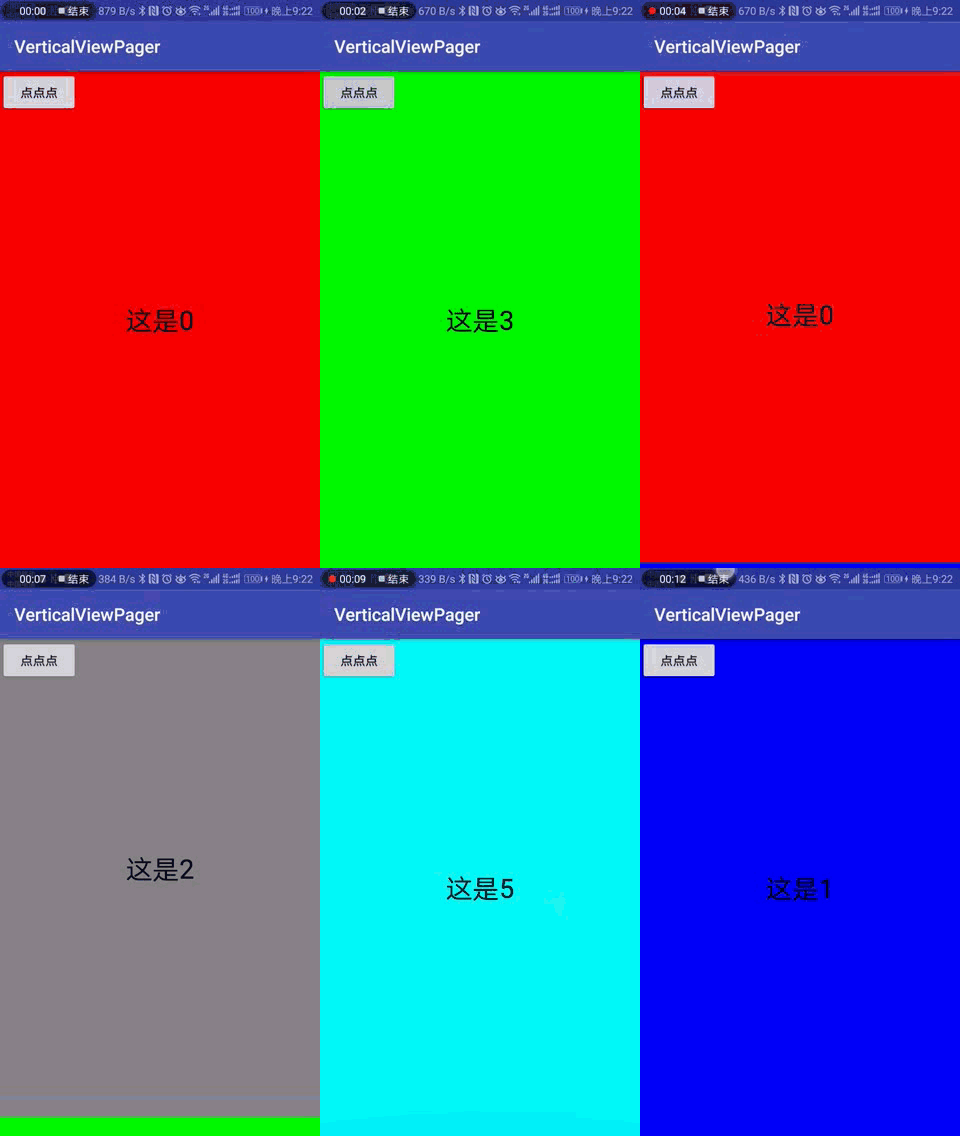
Run
Run the project. You will get the following:
Download
Download the project:
| No. | Link |
|---|---|
| 1. | Download Project |
| 2. | Browse Code |
| 3. | Follow project author |
Conclusion
In this article, we discussed how to implement the Vertical ViewPager in Android using Kotlin. We walked through the steps of adding the dependencies, creating the VerticalViewPager class, creating the layout file, creating the adapter, and setting the adapter. With this knowledge, you can now create vertical swipeable views in your Android app.